Flight Plan tells you how far it is to the green and which way to hit, with the wind and weather that matter for your shot. It keeps working with no phone signal once your course is saved on your phone.
This guide covers everything in the app, in the order you will meet it. It takes about ten minutes to read, and you can jump to any part from the list below.
What you need#
- An iPhone, with Flight Plan installed from the App Store.
- A UK golf course. Flight Plan covers courses in the UK for now.
- Location switched on for Flight Plan. It asks the first time you open a course. Choose While Using the App. Your position stays on your phone: it is used to work out the yards and is not kept on our servers.
No account yet? Choose Try the demo (no account needed) on the first screen. It opens a sample hole at the Old Course at St Andrews with sample weather, so you can look around from your sofa.
Signing in#
You need an account to keep your plan and to subscribe to Pro. There are two ways in:
- Email. Type your email address, and we send a six-digit code. Type the code in. There is no password to remember.
- Sign in with Apple (on iPhone).
When you sign up we ask you to accept the Terms and the Privacy Policy. You can read both at any time from Settings → Help and information.
Choose your course#
The first thing you see is Choose your course.
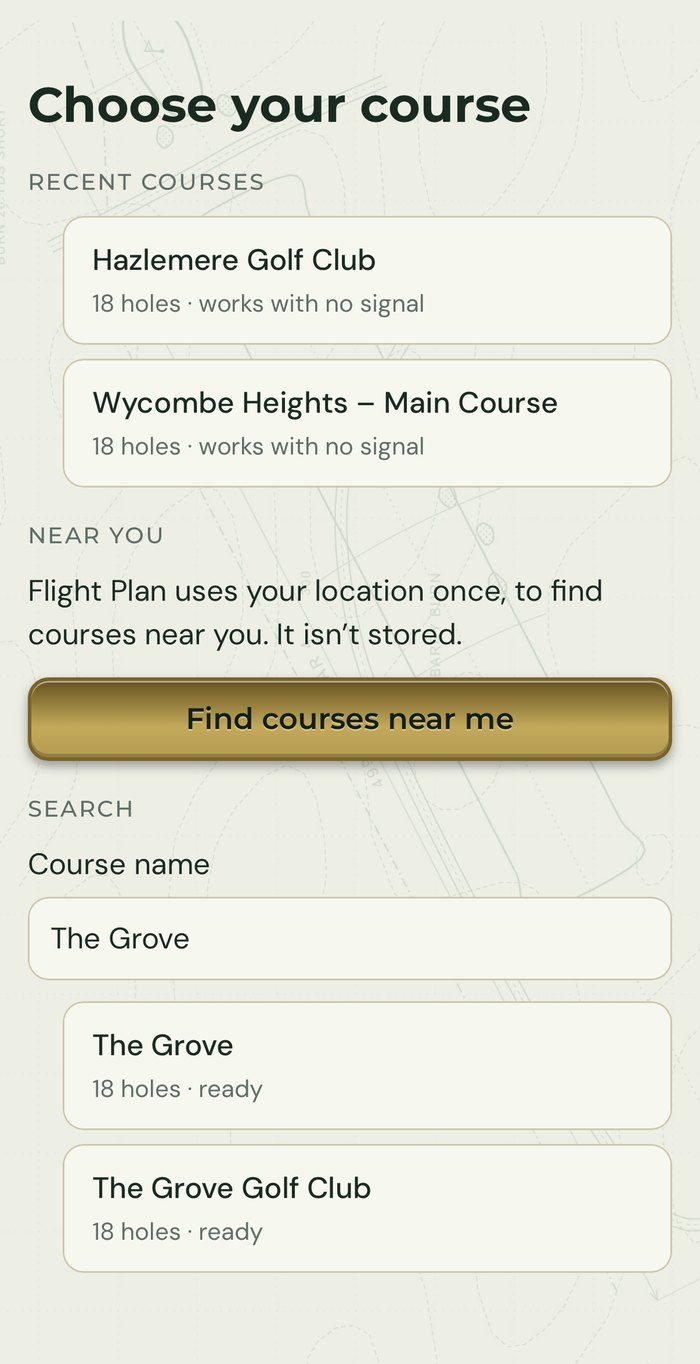
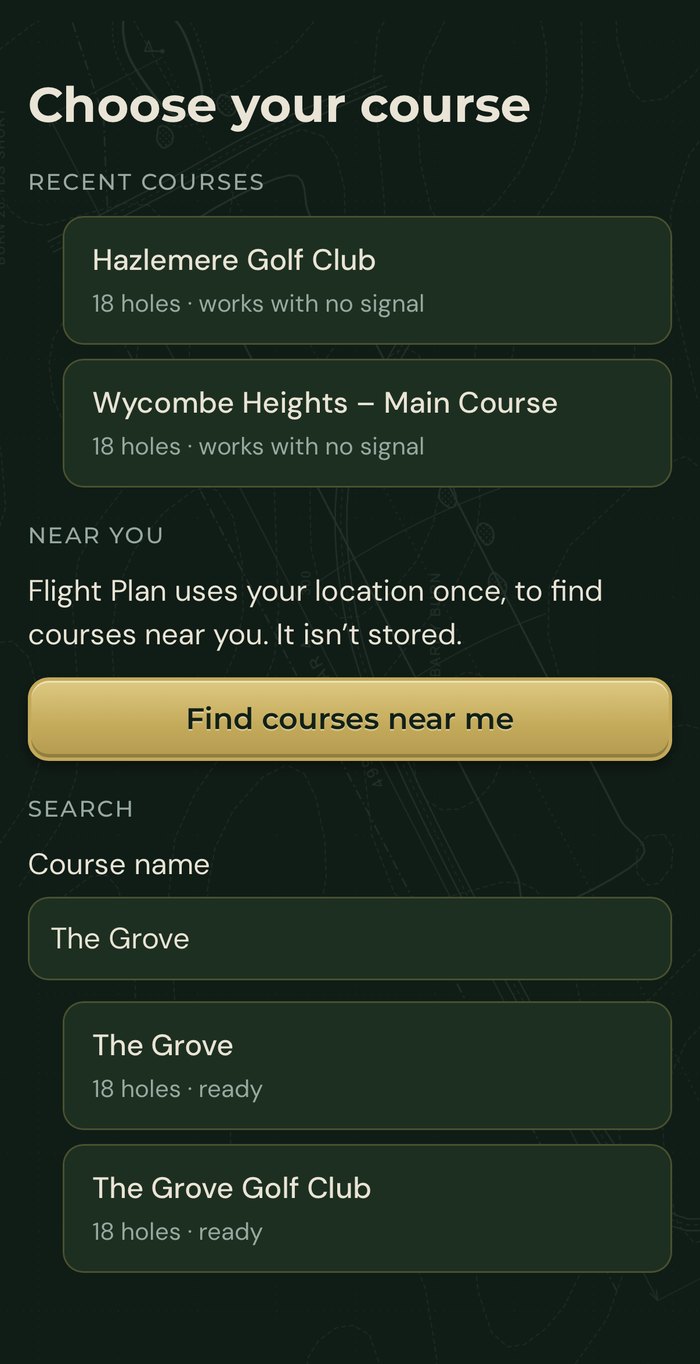
- Recent courses are the ones you have used. They say works with no signal once they are saved on your phone.
- Find courses near me asks your phone where you are, once, to list courses close by. Your position is not stored.
- Search by course name. Each result says ready when its holes are available.
- Tap a course to open it. The first time, Flight Plan saves the course on your phone so that it works with no signal.
On the Free plan you can use one course. Pro unlocks every course.
Reading the dial#
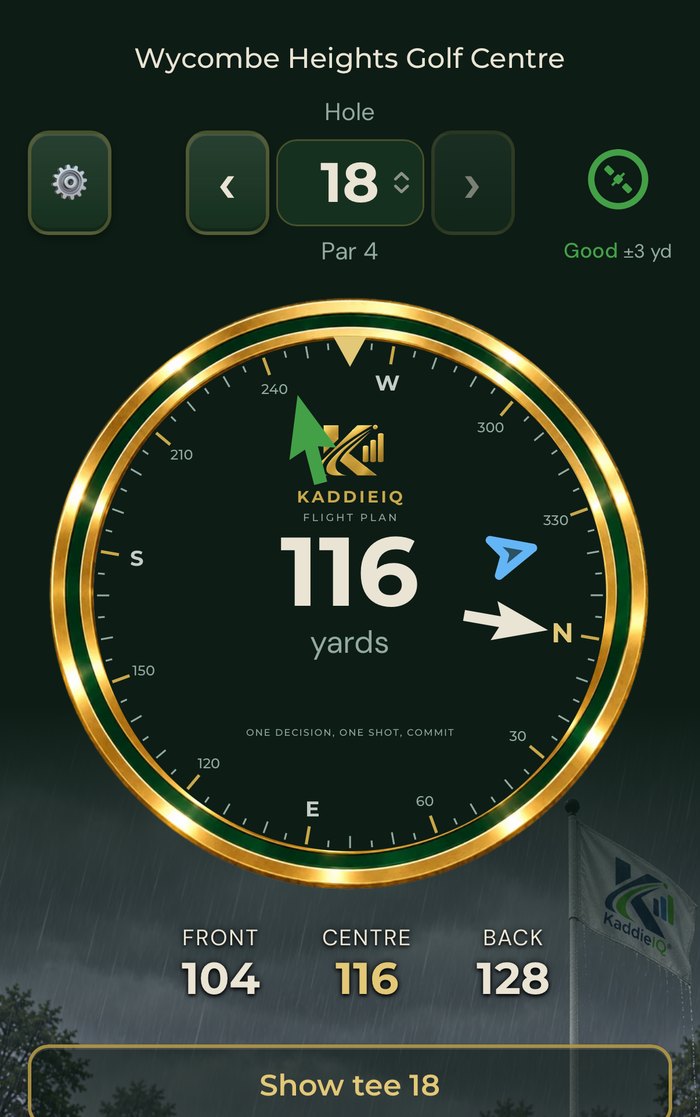
The big circle is the heart of Flight Plan. Everything on the screen is explained below, using the numbers in the picture.
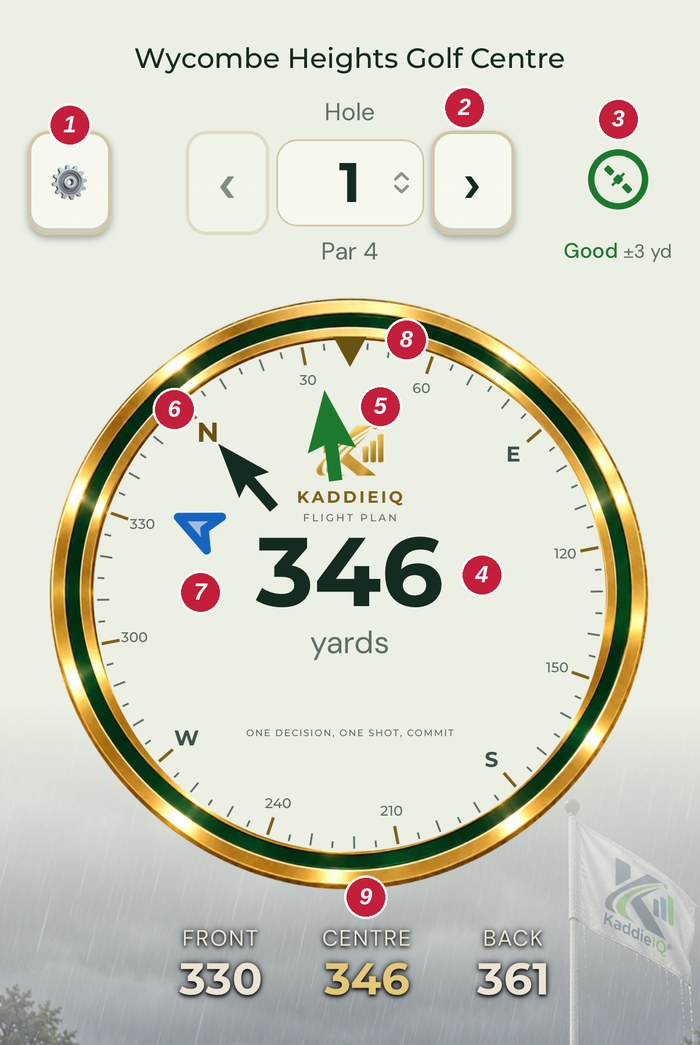
- Settings. Tap the cog for units, theme, tournament mode, help and your account.
- Hole controls. Change hole with ‹ and ›, or tap the number to pick from the list. The par for the hole sits underneath.
- GPS badge. How well your phone knows where you are. See GPS quality below.
- The big number. The distance to the middle of the green, in yards or metres as you have chosen.
- The green arrow. It points at the green. Turn towards it and you are facing the middle of the green.
- The north arrow. It always points north, like a compass.
- The blue outline arrow. It shows where the forecast wind is blowing to. See Wind, rain and thunder.
- The scale round the ring. It turns like a compass. The number at the gold marker at the top is the way your phone is pointing.
- Front, Centre and Back. The distances to the front edge, the middle and the back edge of the green. The centre one is the big number.
Make the arrows turn with you. On iPhone, tap Activate Flight Plan once so the arrows follow your phone as you turn. Your iPhone asks for your OK. If your phone has no direction sensor, the circle stays with north at the top and the green arrow still shows the direction.
GPS quality#
The satellite badge shows how sure your phone is of its position:
- Good: within about 5 metres.
- Fair: within about 10 metres.
- Weak: the distance greys out, because it may be wrong. Move into the open, away from trees and buildings, and wait a few seconds.
Changing hole and the next-tee arrow#
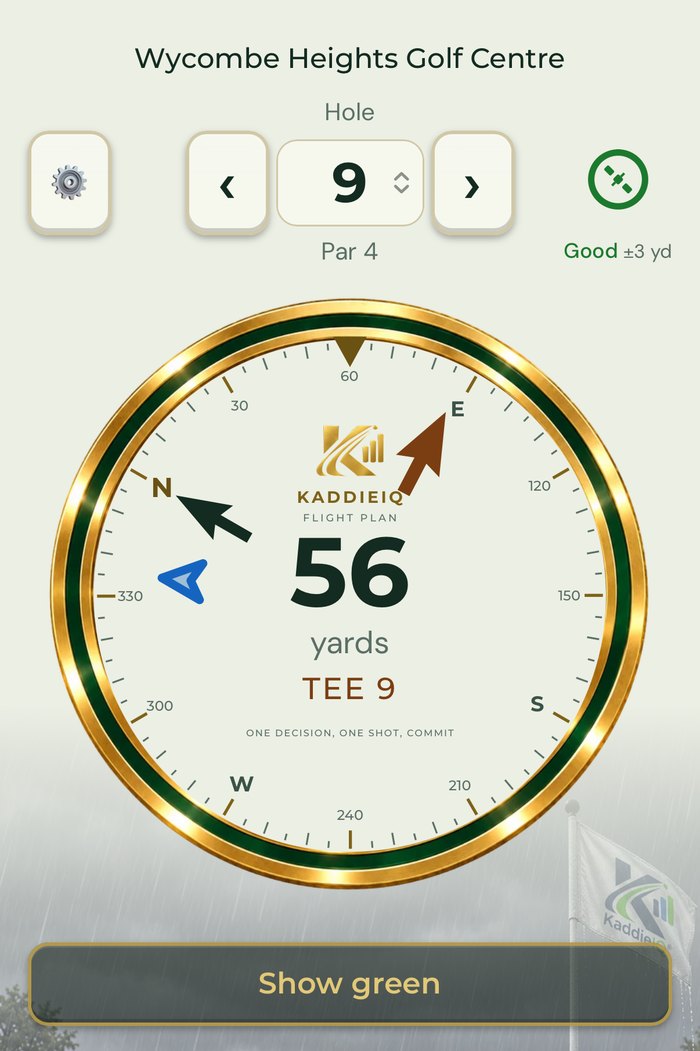
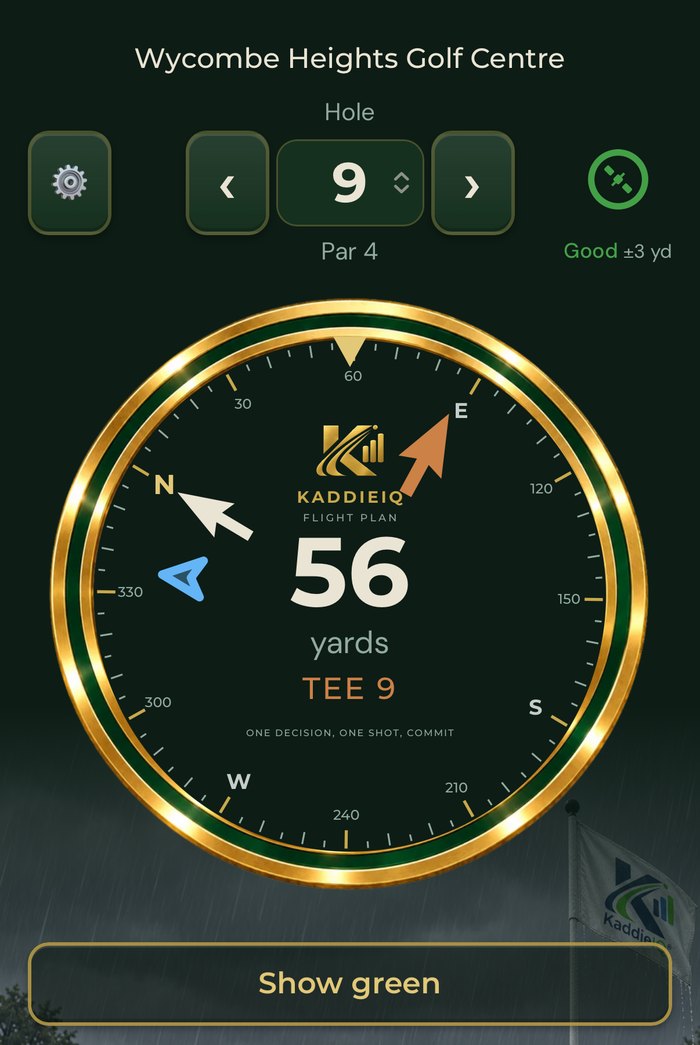
When you finish a hole, tap › to move to the next. With Flight Plan Pro, the arrow then turns brown and points at the next tee, with its label (for example TEE 9), until you get there. The button under the distances switches the arrow: Show green points it at the green for this hole, and Show tee (with the hole number) points it back at the tee.
Wind, rain and thunder#
Weather on the course screen is a forecast, not a measurement at your ball.
- The wind arrow (the blue outline arrow) points the way the forecast wind is blowing to. When the forecast wind is 10 mph or more (16 km/h), the arrow fills in and sways, and a gold wind mark appears beside the wind speed. That is a rule of thumb for when wind starts to matter.
- The rain ticker along the bottom says when rain is likely. Tap its × to dismiss it; it stays away until that wet spell is over.
- The thunderstorm warning is a red banner that appears when thunder is forecast. It cannot be dismissed (you can only minimise it). It is a forecast only: always follow your club's siren and staff.
Forecasts come from MET Norway. Different sources can disagree with what you feel on the course, and that is normal.
The Weather page#
With Flight Plan Pro, open Settings → Weather → Weather details to see the forecast for your selected course.
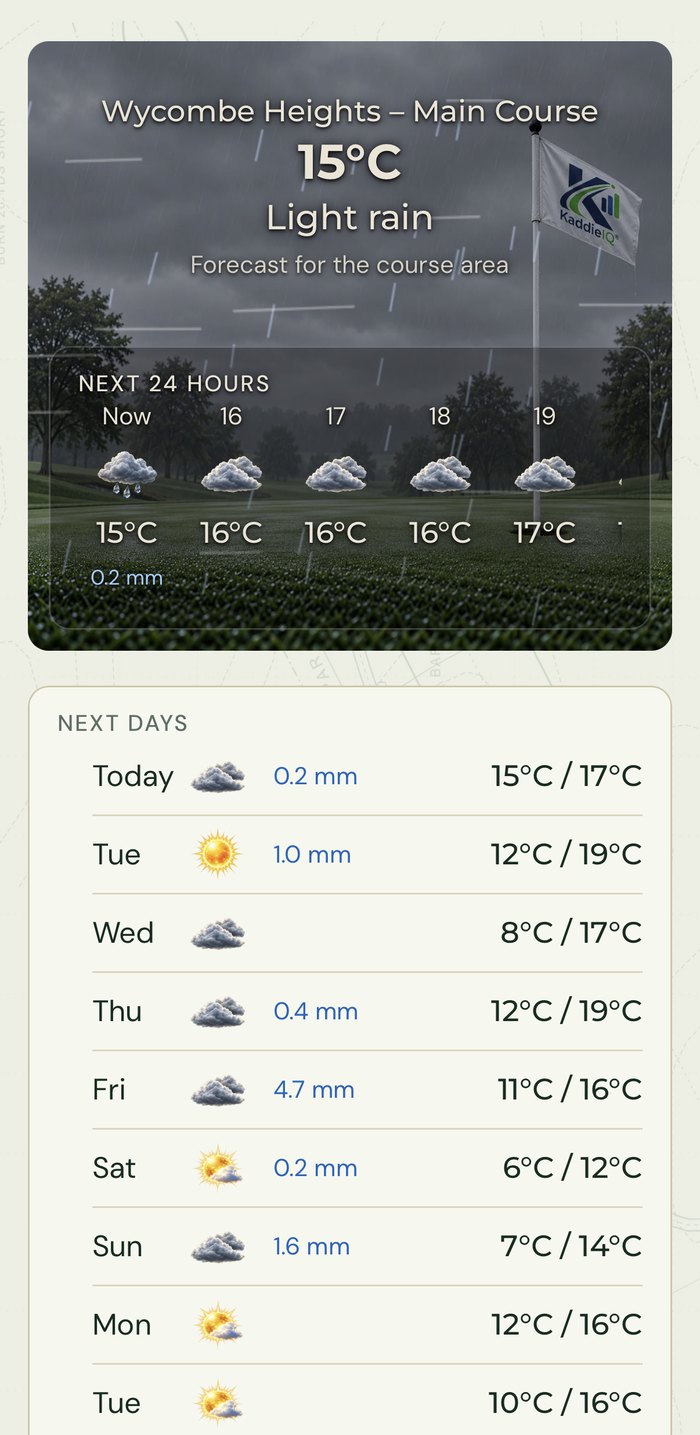
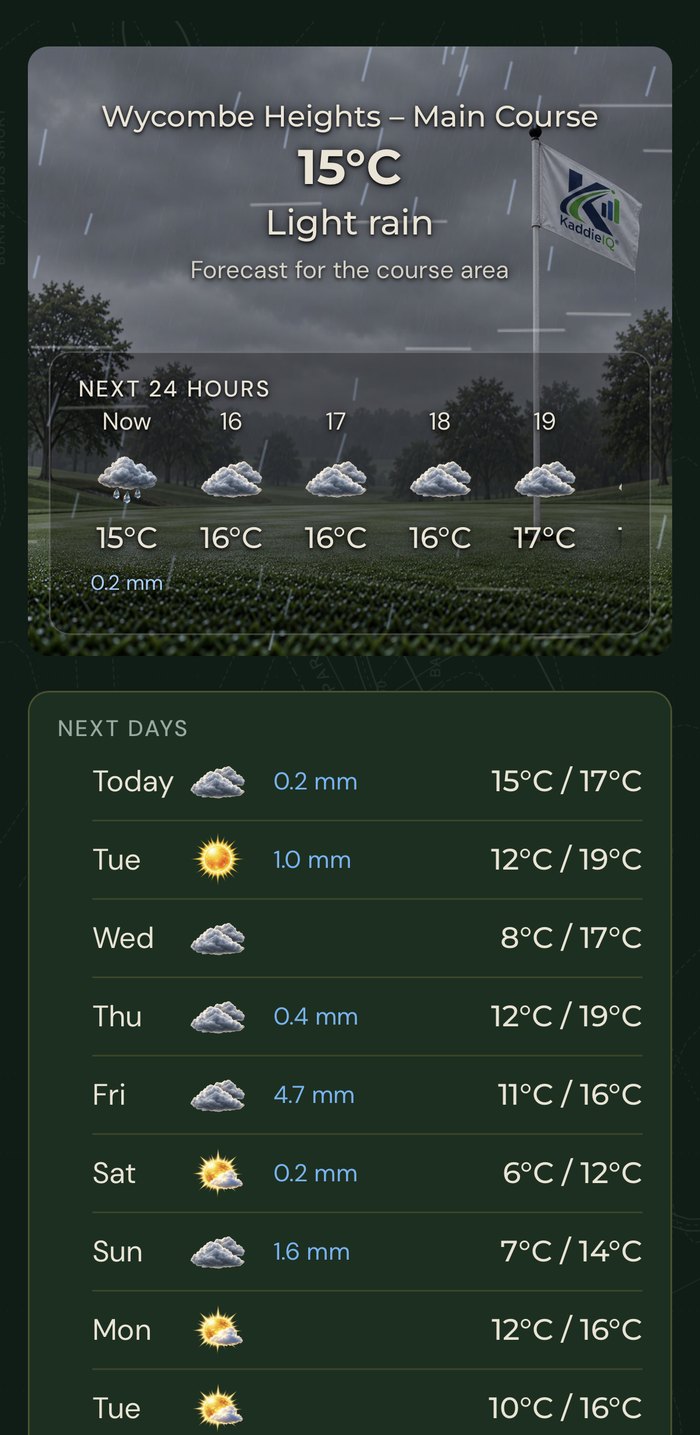
- Now and the next 24 hours, hour by hour.
- The next days, with rain in millimetres and the low and high for each day.
- A 9-day outlook and detailed statistics, including sunrise and sunset times, so you know how much light you have left.
The little movement over the weather picture (rain, snow, wind and thunder effects) is decoration only. Switch it off in Settings → Weather to save a little battery. If your phone is set to reduce motion, you get a still picture automatically.
Settings#
Tap the cog at the top left of the dial.
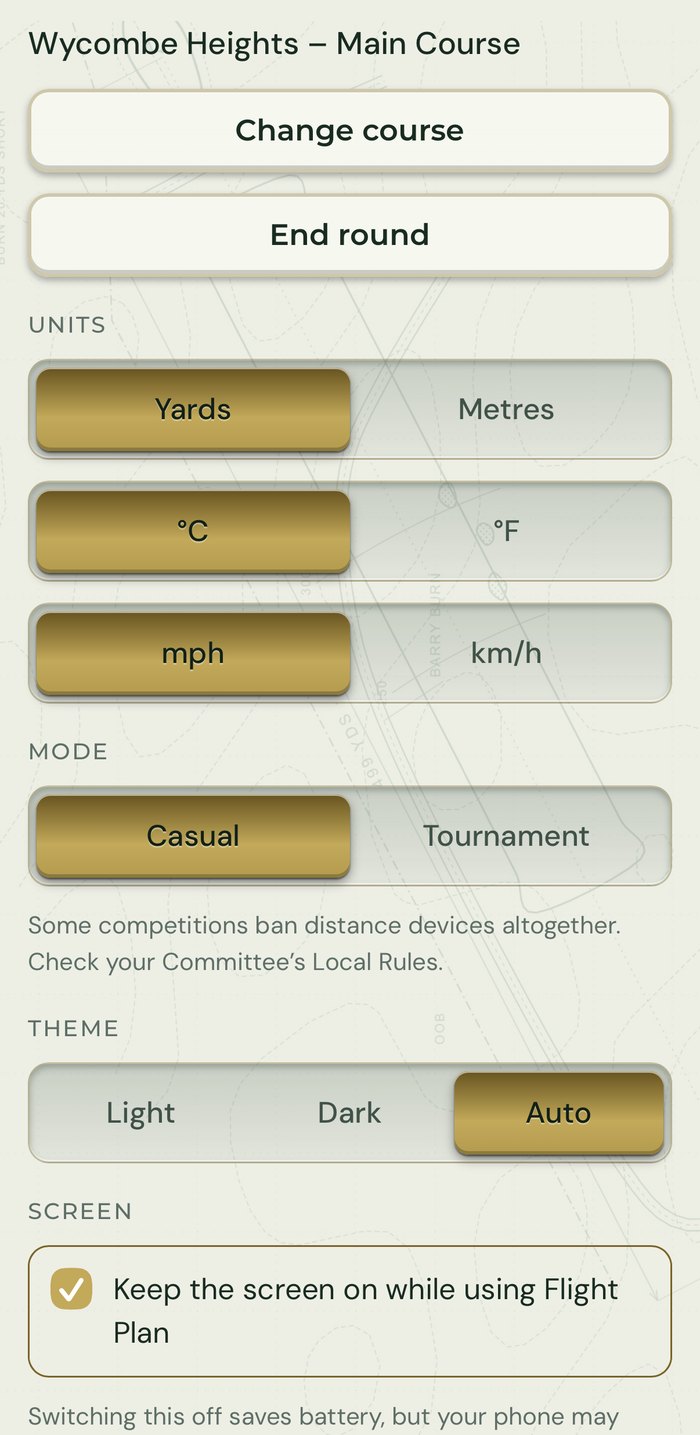
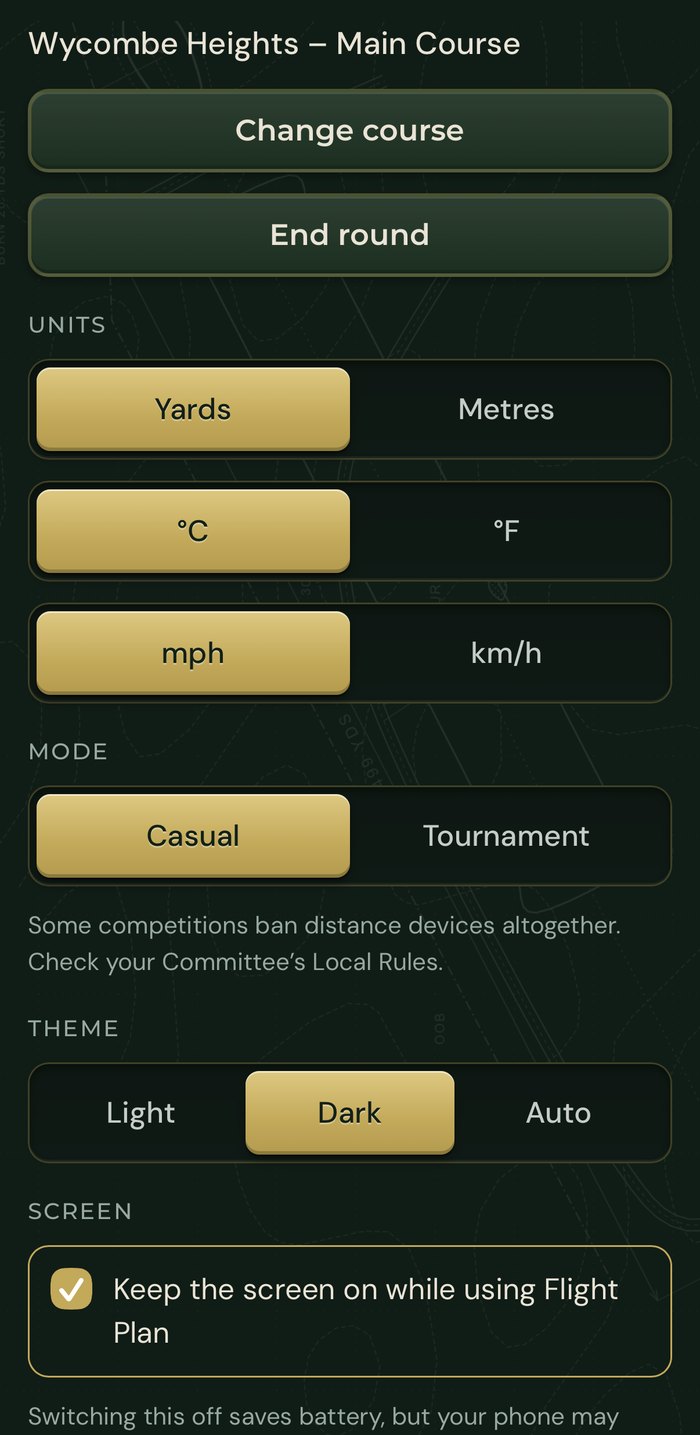
- Change course and End round. Ending a round switches GPS and the keep-awake lock off, which saves battery, and takes you back to choosing a course. Your settings stay. (A tournament round ends differently: see below.)
- Units. Choose Yards or Metres, °C or °F, and mph or km/h. The choices are yours alone: Flight Plan never guesses from where you are.
- Mode. Casual or Tournament. See the next section.
- Theme. Light, Dark or Auto (follows your phone). Both are designed to be easy to read in bright sun and at dusk.
- Screen. Keep the screen on while using Flight Plan stops your phone locking mid-hole. Switching it off saves battery, but your phone may lock between shots. You can also choose a black rest screen: after a time you pick, the screen goes black to save battery while GPS carries on. Tap anywhere to wake it. It never hides a thunderstorm warning.
- Help and information. The in-app Guide, About, support and credits, the Disclaimer, Terms & Conditions and Privacy Policy. The version number is under This app: quote it if you ever contact support.
- Account. Your email, your plan, Upgrade to Pro (or Manage plan), the choice to get Tips, News & Updates from KaddieIQ, and Sign out.
Tournament mode and the Rules of Golf#
In competition, the Rules of Golf (Rule 4.3, from the R&A and USGA) allow a distance-measuring device but not measuring things such as wind speed. Tournament mode turns off the wind arrow and the wind speed so Flight Plan stays within that rule. You can switch it on in Settings → Mode → Tournament.
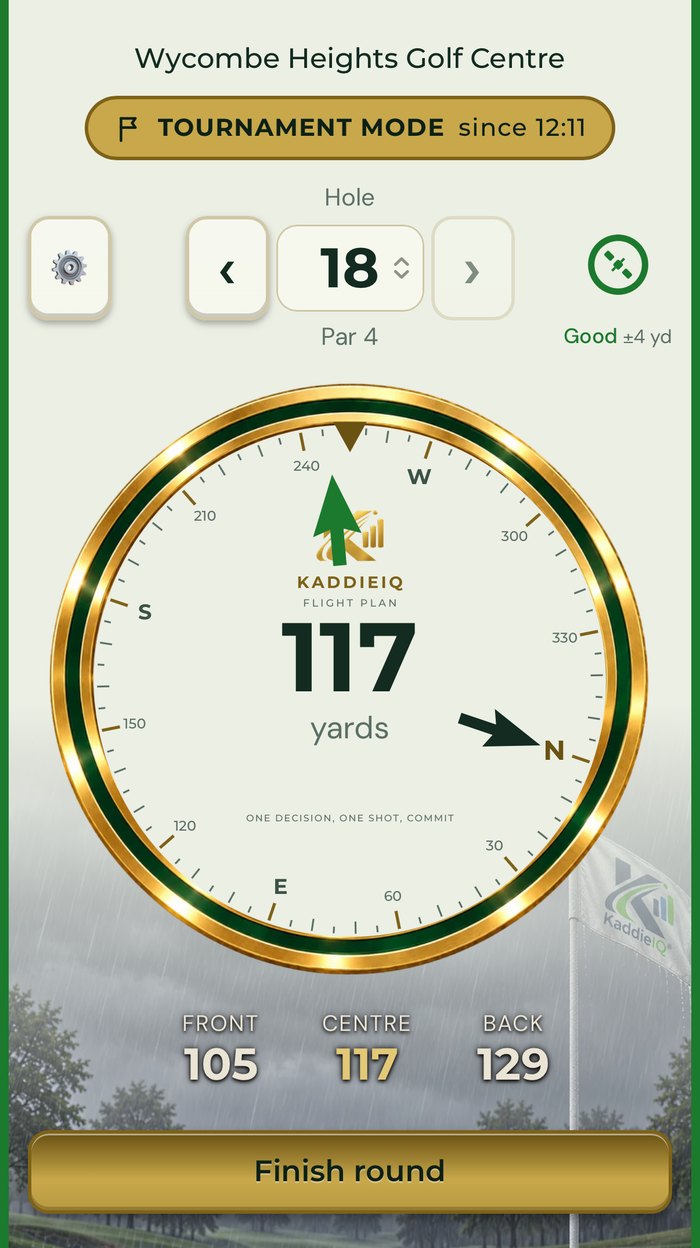
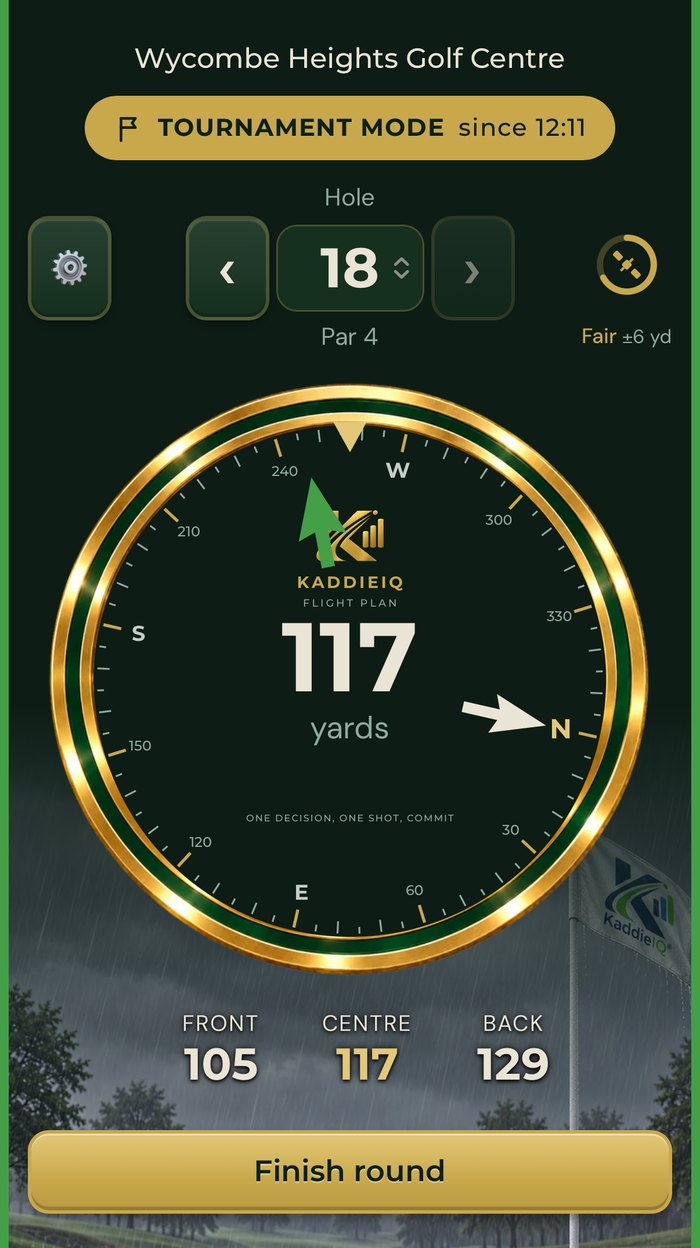
- A TOURNAMENT MODE badge shows the time the round started.
- The wind arrow and wind speed are off.
- It is locked on: you cannot switch it off part-way. It ends when you tap Finish round after the last hole, or after 6 hours at the latest.
- The Weather page is not available while it is on, because it shows wind and other weather details.
- Starting it asks you to confirm first.
Important: a competition Committee can ban distance-measuring devices altogether with a Local Rule. If they have, no mode makes Flight Plan allowed. Check the Local Rules and the notice board before you play. Tournament mode helps you stay within Rule 4.3; it does not carry any approval from the R&A or the USGA.
Free and Pro#
| Free | Flight Plan Pro | |
|---|---|---|
| Distance to the front, centre and back of the green | Yes | Yes |
| The green arrow, north arrow and wind arrow | Yes | Yes |
| The rain ticker and the thunderstorm warning | Yes | Yes |
| Courses | One | Every course |
| Weather page: 24 hours, 9-day outlook, detailed statistics, sunrise and sunset | Yes | |
| Next-tee arrow after you change hole | Yes |
Pro costs £3.49 a month or £24.99 a year. You pay through your Apple account. The subscription renews automatically unless you cancel at least 24 hours before the end of the period.
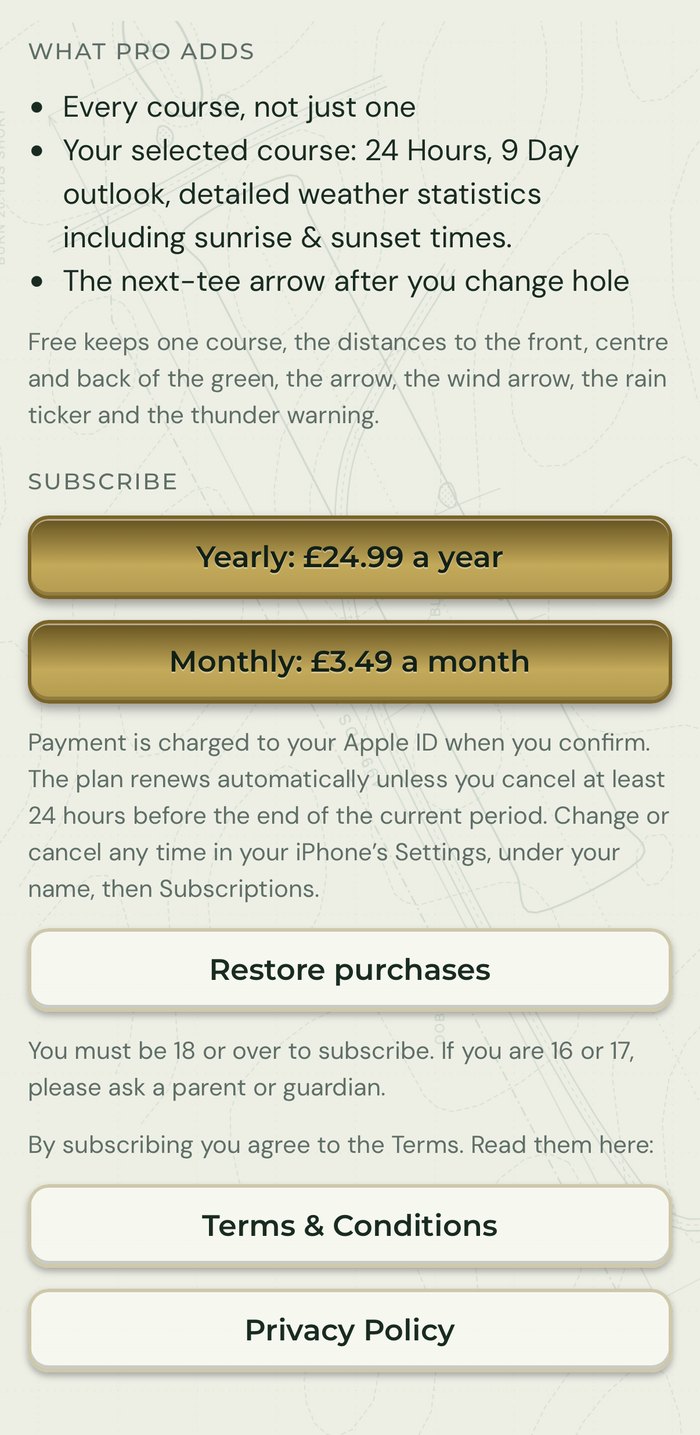
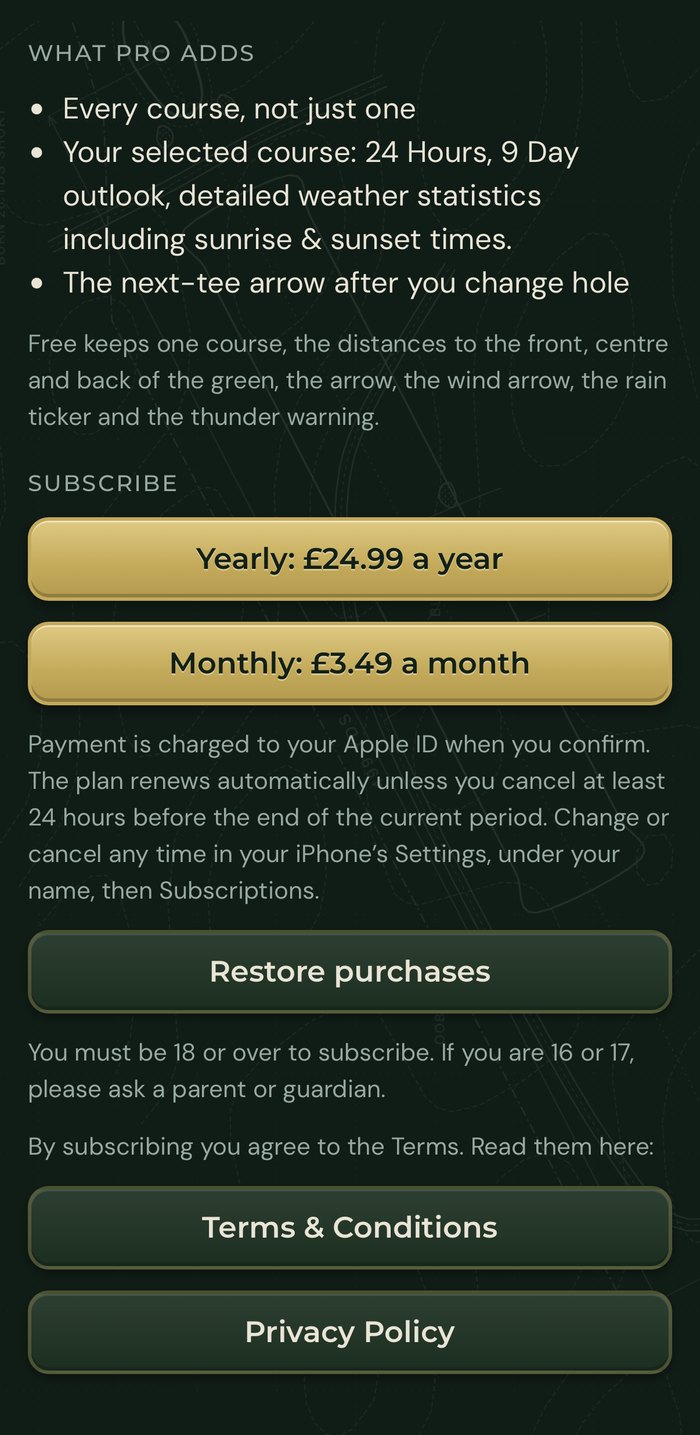
- Subscribe: Settings → Upgrade to Pro, then choose yearly or monthly and confirm with Apple.
- Change or cancel any time: open your iPhone's Settings, tap your name, then Subscriptions.
- Restore purchases: if you reinstall the app or change phone, sign in with the same account and tap Restore purchases on the Pro screen.
- You must be 18 or over to subscribe. If you are 16 or 17, please ask a parent or guardian.
Playing with no signal#
Flight Plan is built for places where the signal is poor.
- Open your course once with a signal. It saves to your phone. The course list then shows works with no signal.
- On the course, distances, arrows, hole changes and the next-tee arrow all work with no signal. GPS does not need a phone signal.
- Weather needs a signal to refresh. With no signal, the Weather page shows the last forecast the app downloaded, marked "no signal: showing the last forecast" with the time it was updated. Open it in the car park for the freshest picture.
Your data and your account#
- What we keep: your email address and your plan. Your GPS position stays on your phone.
- Weather and nearby courses: the app sends a position rounded to about 1 km to fetch the forecast and list courses. It is not stored with your account.
- Marketing emails: only if you tick the box for Tips, News & Updates. Untick it in Settings to unsubscribe at any time.
- Delete everything: Settings → Your data → Delete my account and data. This removes your account and your data. The Privacy Policy explains the few records the law requires us to keep.
- The details: the Privacy Policy at kaddieiq.com/privacy-flight-plan and the Terms at kaddieiq.com/terms-flight-plan.
Questions and fixes#
The distance is greyed out. GPS is weak. Move into the open and wait a few seconds. The satellite badge turns to Fair or Good when it is sure.
The arrows do not turn when I turn. On iPhone, tap Activate Flight Plan once and allow the request. Step away from metal, buggies and magnets, which upset the compass. Move your phone in a figure of eight if the direction drifts.
It says my course is not ready, or I cannot find it. Check the spelling, or search by a shorter part of the name. Flight Plan is UK only for now. If a course is missing, tell us at the support page below.
A distance looks wrong for a hole. Check the hole number first: the arrow and distance follow the hole shown at the top. If it still looks wrong, send us the course, the hole number and roughly the time, with a screenshot. Course outlines come from OpenStreetMap contributors and our own checks, so a hole can be out of date.
The screen locks between shots. Switch on Settings → Screen → Keep the screen on.
Battery. Dark mode, a shorter rest-screen time and switching off the Weather page effects all save battery. Flight Plan keeps GPS on while you play, as any golf app does.
I subscribed on another phone. Sign in with the same account and tap Restore purchases on the Pro screen.
I want to cancel. On iPhone: Settings → your name → Subscriptions → Flight Plan Pro → Cancel Subscription.
I need help. Go to kaddieiq.com/support or email support@kaddieiq.com. Please tell us your version number (Settings → This app) and what you were doing. Please never send passwords or payment details.
Safety and limits#
- Look up. Do not use your phone while driving a buggy. Follow the club's siren and staff in bad weather.
- Flight Plan is not a rangefinder. It uses your phone's GPS and a forecast, so a distance can be a few yards out, and the weather can differ from what you feel.
- Rules. Check your competition's Local Rules before you use any distance-measuring device (see Tournament mode).
- Every decision on the course stays yours.
- Course data is made from OpenStreetMap contributors' work and our own checks. Forecasts are from MET Norway.
- Age: you must be 16 or over to use Flight Plan, and 18 or over to subscribe.
KaddieIQ Flight Plan. One Decision, One Shot, Commit.